How to Export Your YouTube Subscriptions
A step-by-step guide to exporting your subscriptions.csv file from YouTube using Google Takeout.
March 30, 2026
If you want to import your YouTube subscriptions into Serial, you’ll first need to export a subscriptions.csv file from Google. Here’s how to do it using Google Takeout.
Step 1: Open Google Takeout
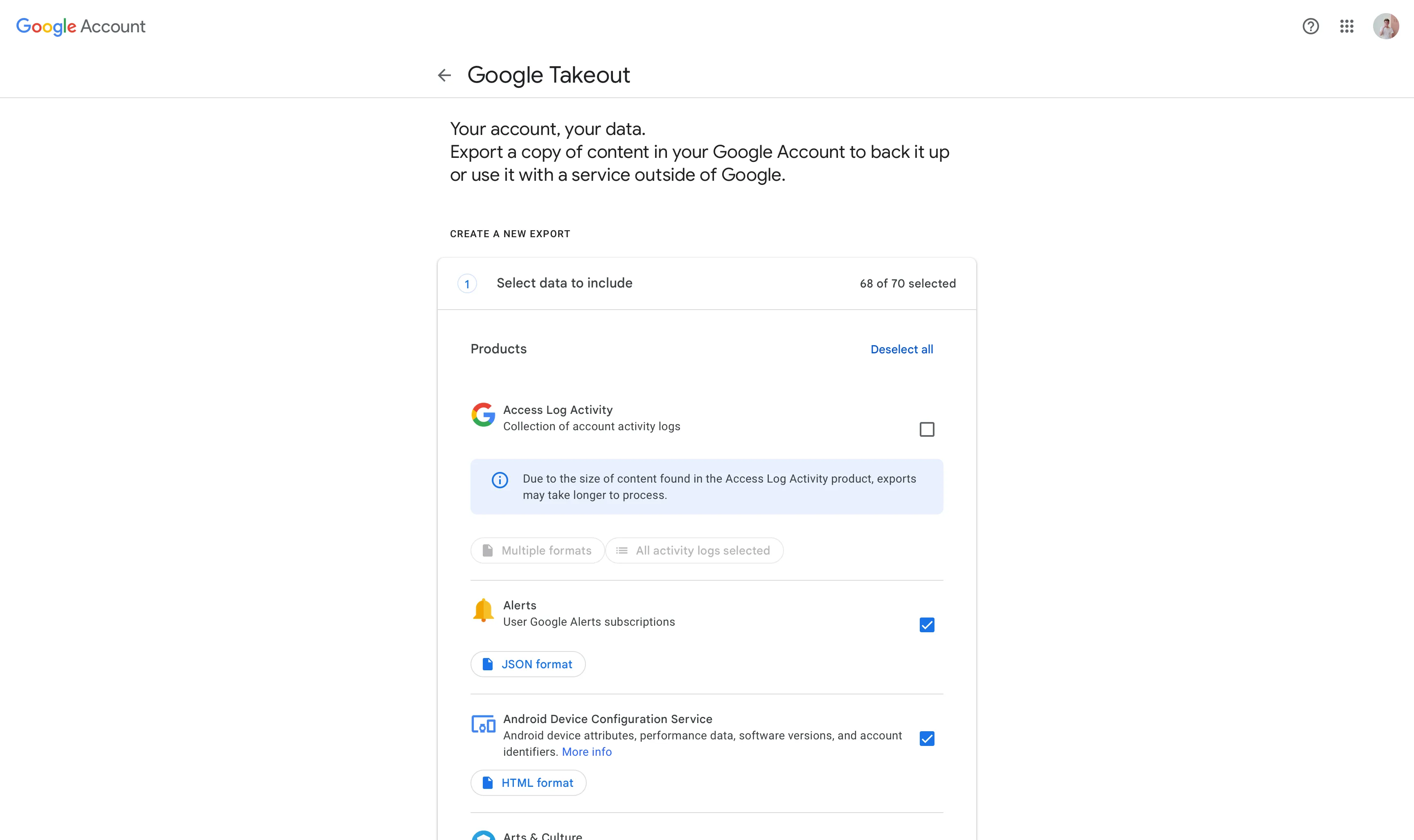
Navigate to Google Takeout. Once there, hit “Deselect all” to exclude unneeded app data. This ensures we only export what we need, keeping the process fast.
Step 2: Select YouTube Data
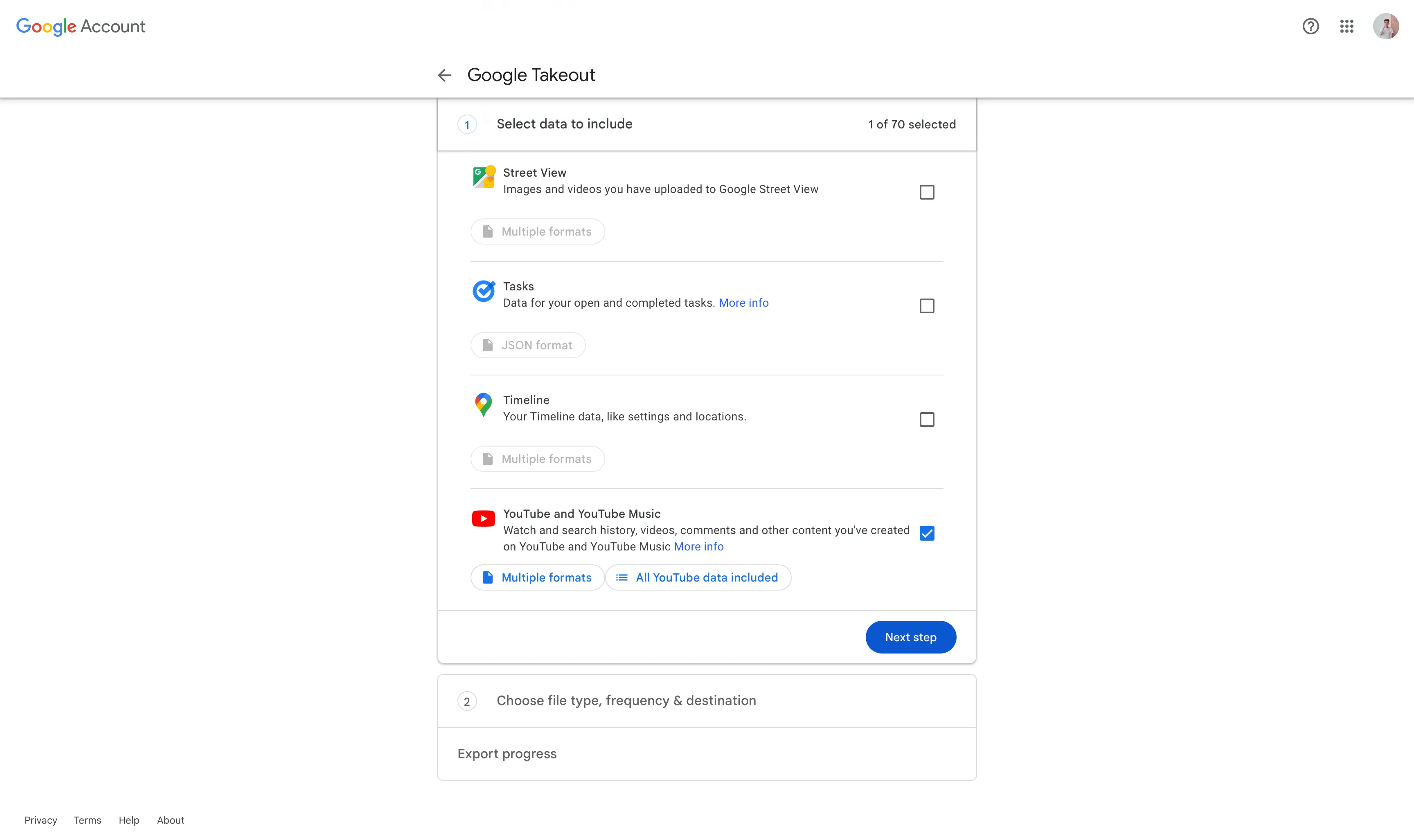
Scroll down and check “YouTube and YouTube Music”, then click on “All YouTube data included”.
Step 3: Select Only Subscriptions
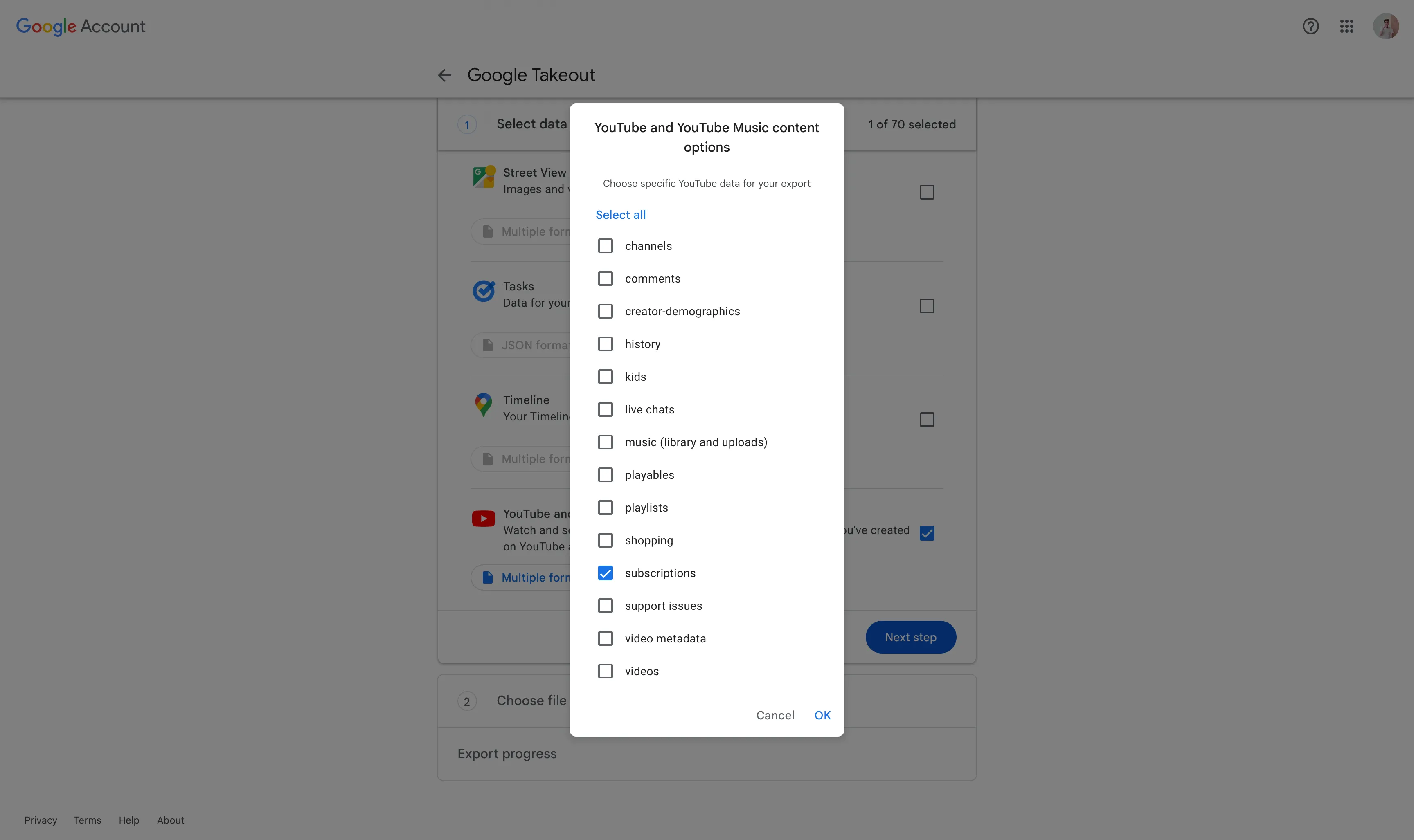
In the popup, deselect all options, then check only “subscriptions” and hit “OK”.
Step 4: Create the Export
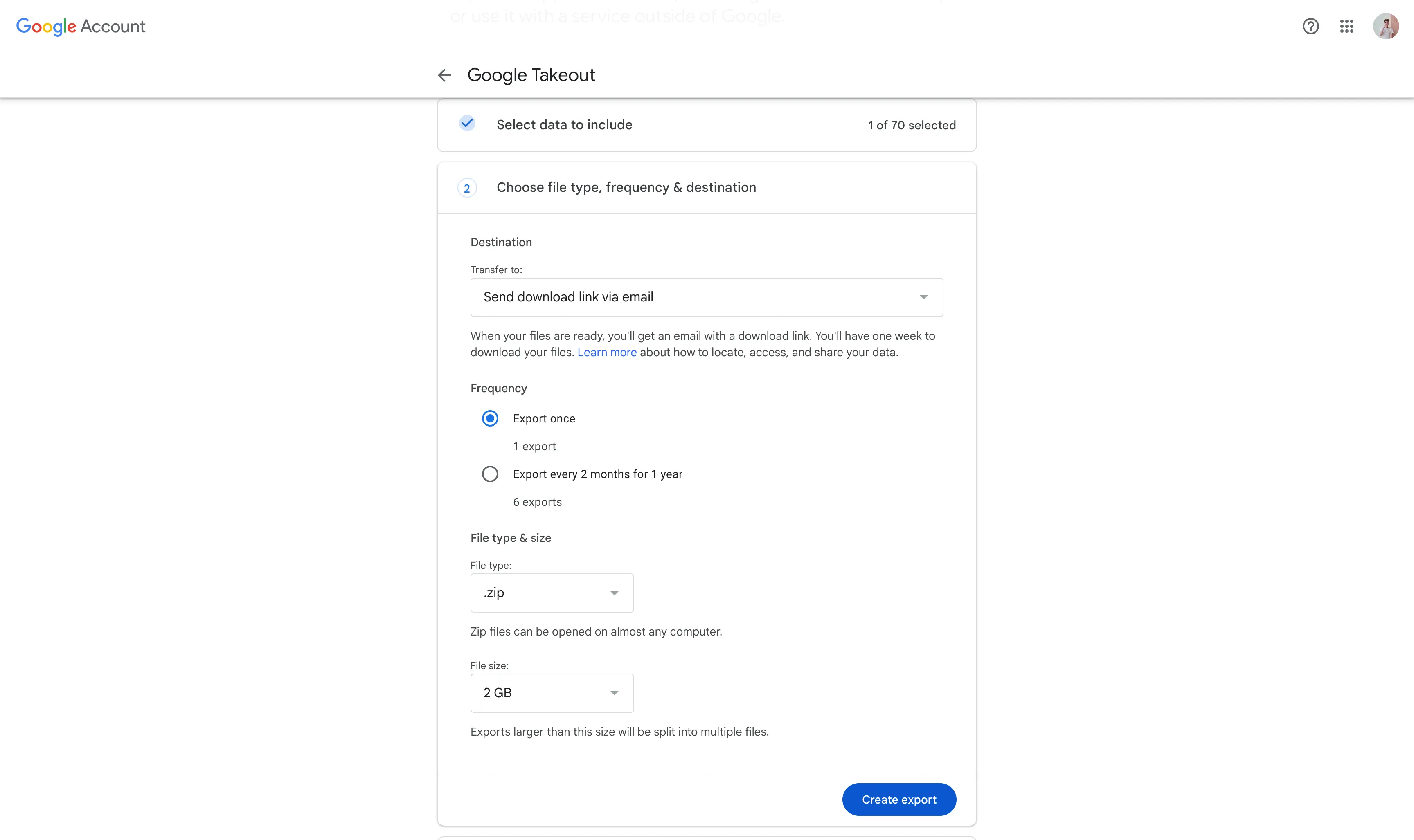
Hit “Next step”, then hit “Create export”. Google will start preparing your data.
Step 5: Wait for the Email
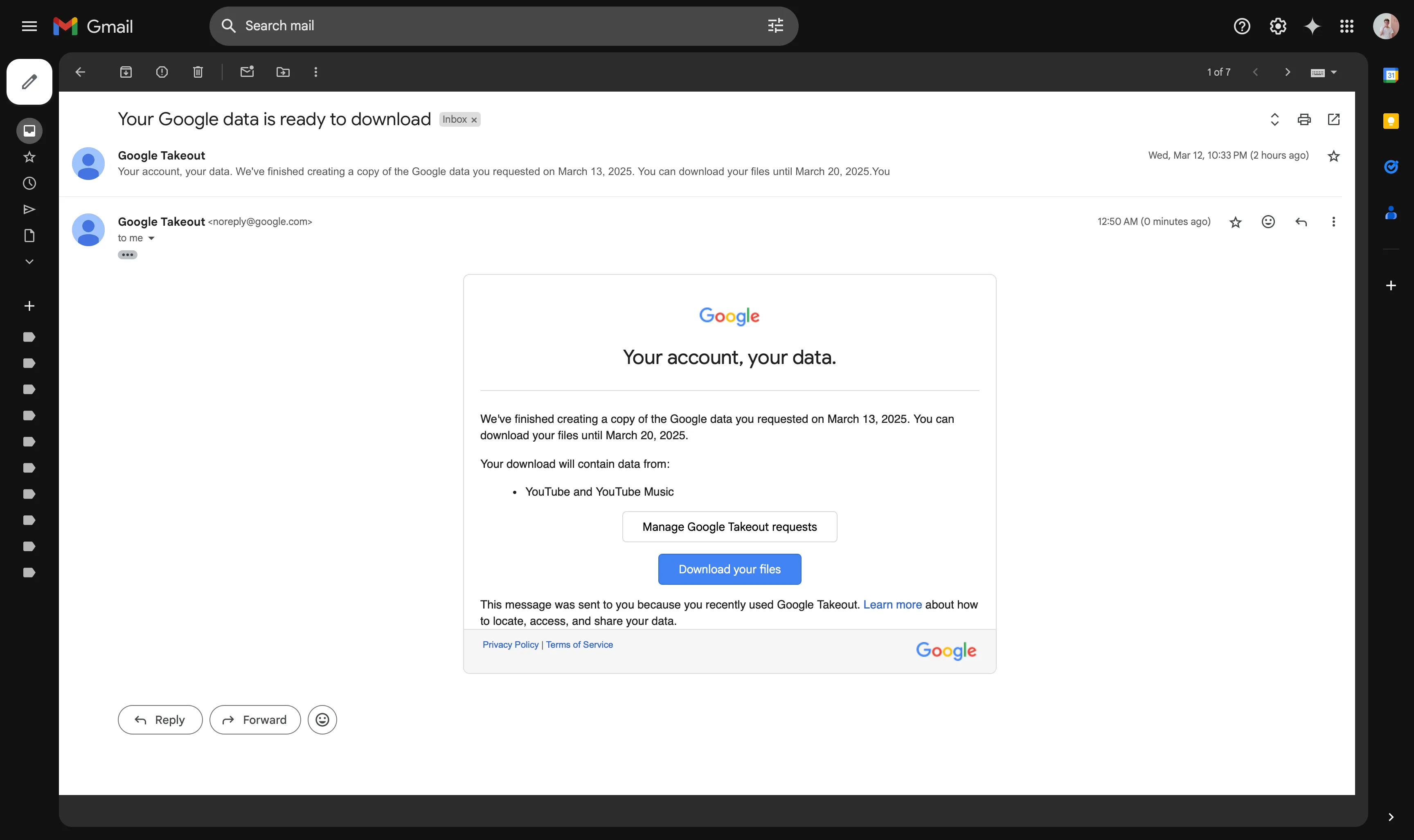
Soon, you will receive an email from Google with your subscription data. Since we deselected everything we didn’t need, this should be nearly instant.
Step 6: Find Your File
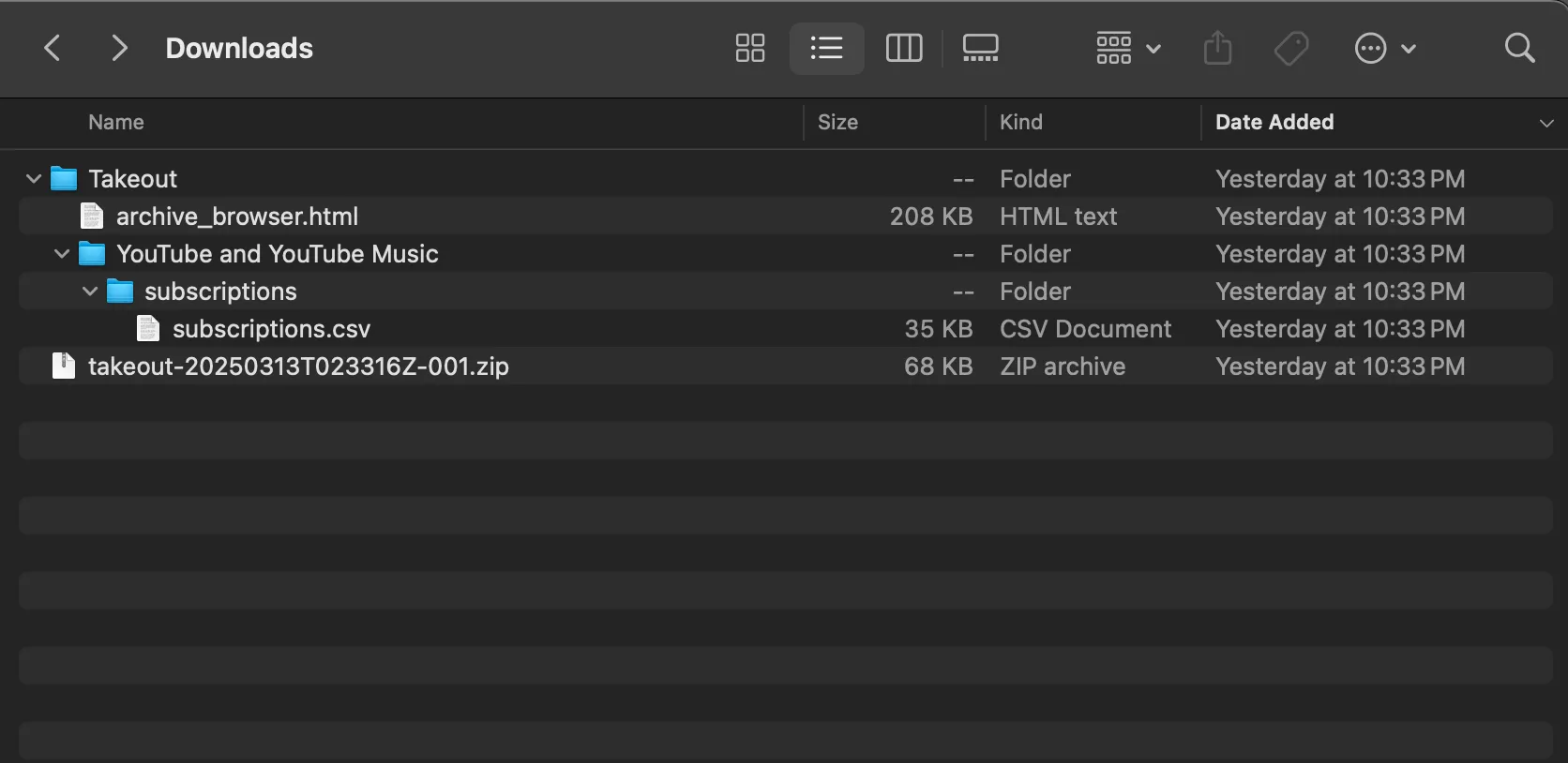
Download and unzip the file from Google. You will find the subscriptions.csv file nested a few folders inside the archive.
That’s it!
You now have a backup of your YouTube subscriptions for whatever you need. If you want to keep tabs on these channels while opting out of the YouTube algorithm, we’d love it if you’d try out Serial.
Serial (this website) supports importing your subscriptions.csv file directly, enabling you to start following all of your YouTube channels without the algorithm.
If that sounds like something that interests you, you can find out more here!